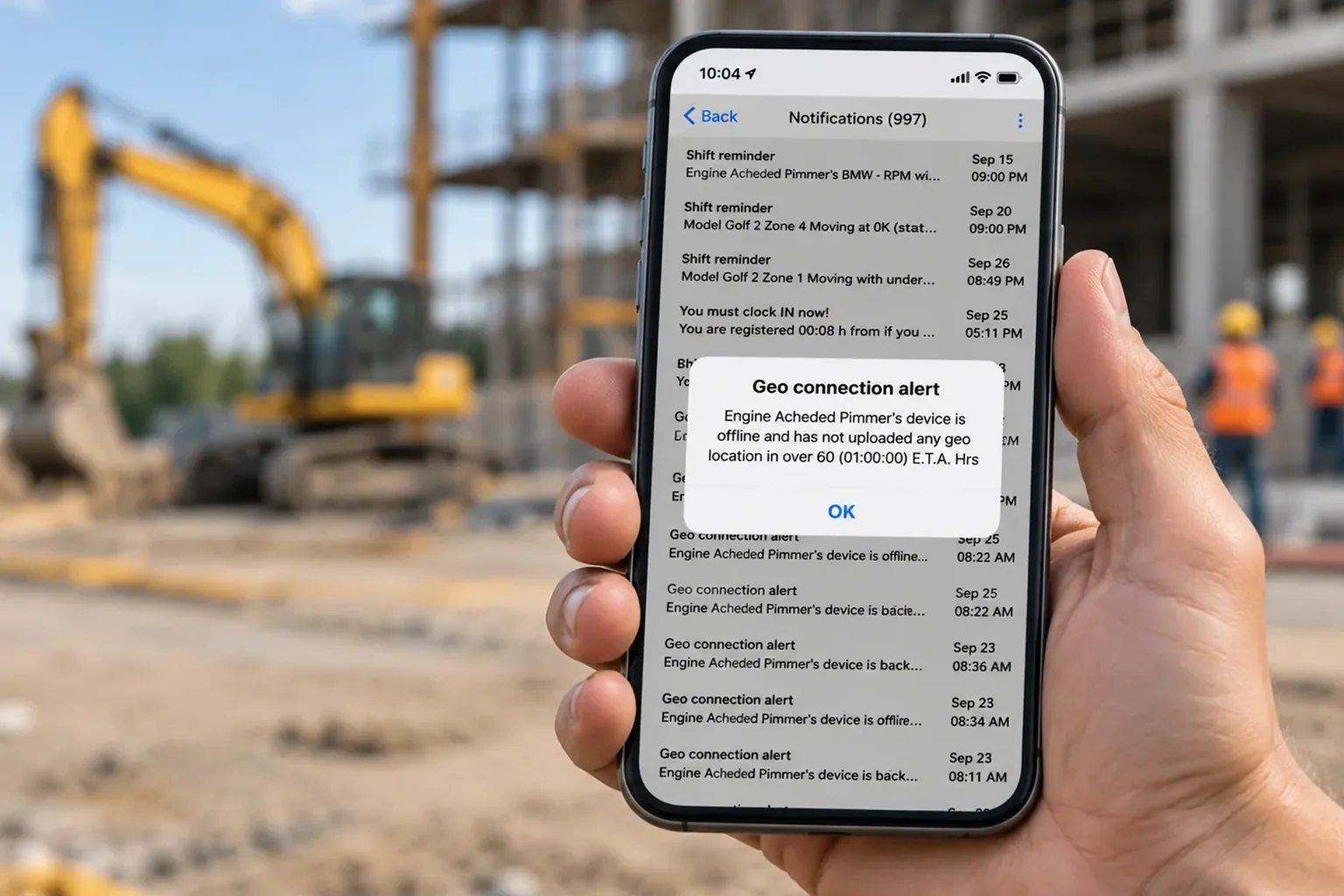
Many contractors start by flagging out-of-area punches while testing a new geofence. Once they’re confident the boundaries work reliably, they can consider blocking unauthorized punches.
Also decide what should happen when GPS is unavailable or cannot determine the worker’s location. With Fareclock’s geofencing settings, administrators can configure geofences around jobsites and control how the system handles punches based on the worker’s location. For a visual walkthrough of the setup process, watch this geofencing tutorial.
Step 5: Assign workers to the correct job site
Link each worker, crew, or shift to the job they’re working. A location check confirms a phone is on site, but it doesn’t confirm which project the hours belong to. When several jobs share one location, ask workers to select the job at clock-in.
Step 6: Test the geofence at the construction site
Walk the entrances and far corners with two or three phone models, since phones can report different positions from the same spot. Then run a flag-only period before you switch to blocking. Flagged punches reveal boundary gaps, dead zones, and legitimate off-site starts.
Step 7: Train employees and supervisors
Hold a short crew huddle and show a live punch. Explain why the app needs location access and what to do if it can’t find a location. Share your written policy, including when you record location, who can see it, and how workers can request corrections.
How to Set Geofence Boundaries for Different Construction Sites
The right boundary depends on the size and shape of the site. Custom shapes that follow real work zones usually work better than a generic circle around the trailer.
- Small sites and renovations: A modest radius or tight polygon is usually enough. Check that it doesn’t reach into the street or a neighbor’s driveway.
- Large projects: A tight circle around the trailer can reject punches from workers at the far end. Use a polygon or split the site into several zones.
- Irregular boundaries: Place polygon points along the real edges so the fence follows the site’s actual shape.
- Multiple entrances or zones: Make sure every gate falls inside the fence. On big builds, a separate fence per zone can make job-level hours clearer.
- Temporary job sites: Create fences quickly and review them when phases change. Archive them when work ends.
How to Improve GPS Accuracy for Construction Clock-Ins
GPS readings aren’t always exact, especially around large buildings and enclosed work areas. A few practical checks can help reduce failed clock-ins and prevent workers from being incorrectly marked outside a jobsite.
- Test at site entrances: Check location accuracy using several phones and repeat the tests at different times. GPS performance can vary between devices.
- Account for physical obstructions: Concrete structures, basements, and parking garages can weaken GPS signals. Use punch flags and supervisor review where location readings are unreliable rather than automatically rejecting every out-of-area punch.
- Set practical geofence boundaries: Make sure the boundary covers the actual work area and allows for small GPS variations. Fareclock supports circular and polygon-shaped geofences, so administrators can adjust boundaries to match different jobsite layouts.
- Create a process for failed checks: Tell workers what to do if a clock-in fails. They should be able to retry, report the issue to a supervisor, and provide a reason for manual correction. Keep a record of any changes to the timecard.
- Prepare for connectivity problems: If the system supports offline clock-ins, check whether it stores punches locally and syncs them when the device reconnects. This helps crews keep recording time in areas with weak or no service.
Phone battery life and mobile coverage also affect GPS-based timekeeping. If your system tracks location continuously, consider the extra battery use and provide charging options on site. Supervisors should also know how to distinguish a connectivity problem from an inaccurate location reading.
What Are the Most Common Construction Geofencing Problems and How Can You Fix Them?
Geofencing issues often come from inaccurate boundaries, outdated site information, or settings that don’t match how crews work. Here are seven common problems and how to address them.
- Incorrect site location: A misplaced map pin can put the geofence outside the actual work area. Check the location using satellite view and test it with a punch from the site.
- Geofences that are too small: GPS variations can cause legitimate clock-ins to be rejected. Allow some margin around the work area and use a polygon-shaped boundary when a circular fence doesn’t fit the site layout.
- Geofences that are too large: An oversized boundary may allow clock-ins from nearby roads, parking areas, or other locations. Adjust the fence to cover only the areas where workers are authorized to record time.
- Outdated site boundaries: Construction sites change as projects progress. Review geofences when access points, work zones, or site layouts change, and update them to reflect current conditions.
- Incorrect job assignments: A location check doesn’t automatically assign labor hours to the right project. Set up worker schedules and job assignments, and make sure employees select the correct job, phase, or cost code when clocking in.
- Relying on geofencing to verify identity: A device can be inside the boundary without confirming who is using it. Combine location checks with a PIN or biometric verification, such as Fareclock’s facial recognition.
- Skipping tests before rollout: Incorrect settings can affect an entire crew. Test the geofence with several devices and review flagged punches before enabling strict restrictions across the site.
How to Check Whether Your Construction Geofences Are Working
Compare what the system recorded with what actually happened on site. Check often at first, then less often once boundaries settle.
- Review clock-in exceptions: Look for repeated flags at the same spot. That pattern usually points to a mapping error or a dead zone.
- Compare with site attendance: Match time records against daily logs or supervisor headcounts.
- Monitor job-level labor hours: Unexpected hours on a nearby job often mean overlapping fences or missing assignments.
- Adjust boundaries carefully: Change one setting at a time, then retest.
Before you turn on strict enforcement, review the electronic monitoring and notice rules where you operate. Some states require written notice before you track employee locations. Biometrics also carry their own legal requirements.
How Fareclock Helps Set Up Construction Site Geofencing
Our construction time tracking software helps contractors manage jobsite geofences, enforce location-based clock-in rules, monitor employee locations, and track labor hours across multiple projects.
Here’s how its features support construction site geofencing:
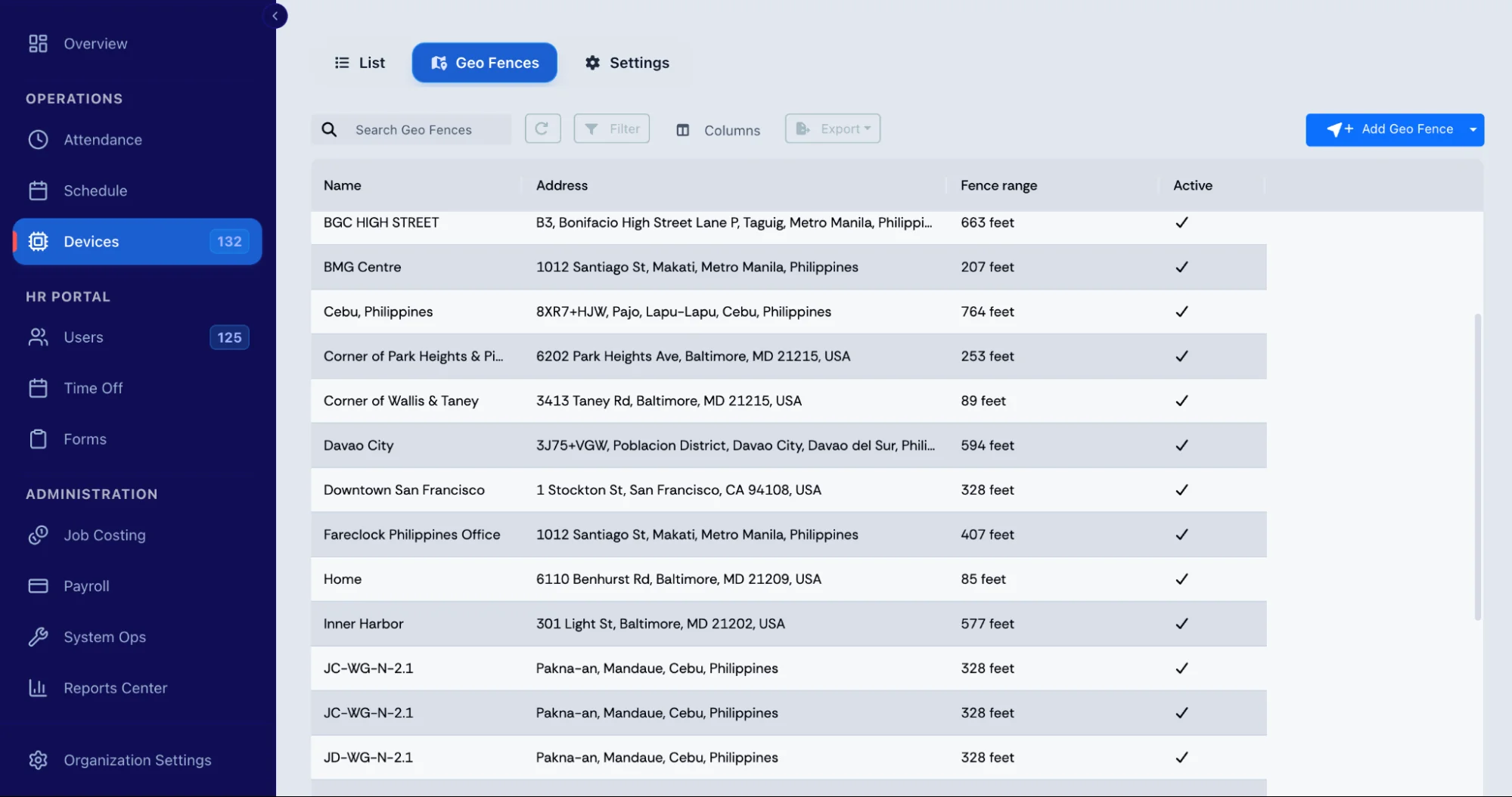
- Flexible geofence assignments: Create geofences for individual workers, devices, shifts, schedules, or jobs. You can assign multiple geofences to one worker and configure separate clock-in and clock-out rules based on job requirements. Fareclock can restrict or flag punches made outside designated geofences, helping ensure crews clock in and out from the appropriate jobsite.
- Circular and polygon-shaped boundaries: Set a geofence using a site address or map pin, then adjust its radius or draw a polygon around the work area. This gives contractors more control over irregularly shaped sites and locations with multiple access points.
- GPS tracking modes: Choose how our employee time clock software records worker locations. Clock IN & OUT with Geofences captures location data when employees punch in or out. Live with Geofences and Live with Breadcrumbs & Geofences provide additional location visibility while workers are clocked in. Depending on the selected settings, administrators can also use automatic clock-in and clock-out, along with notifications when workers enter or leave a geofenced area.
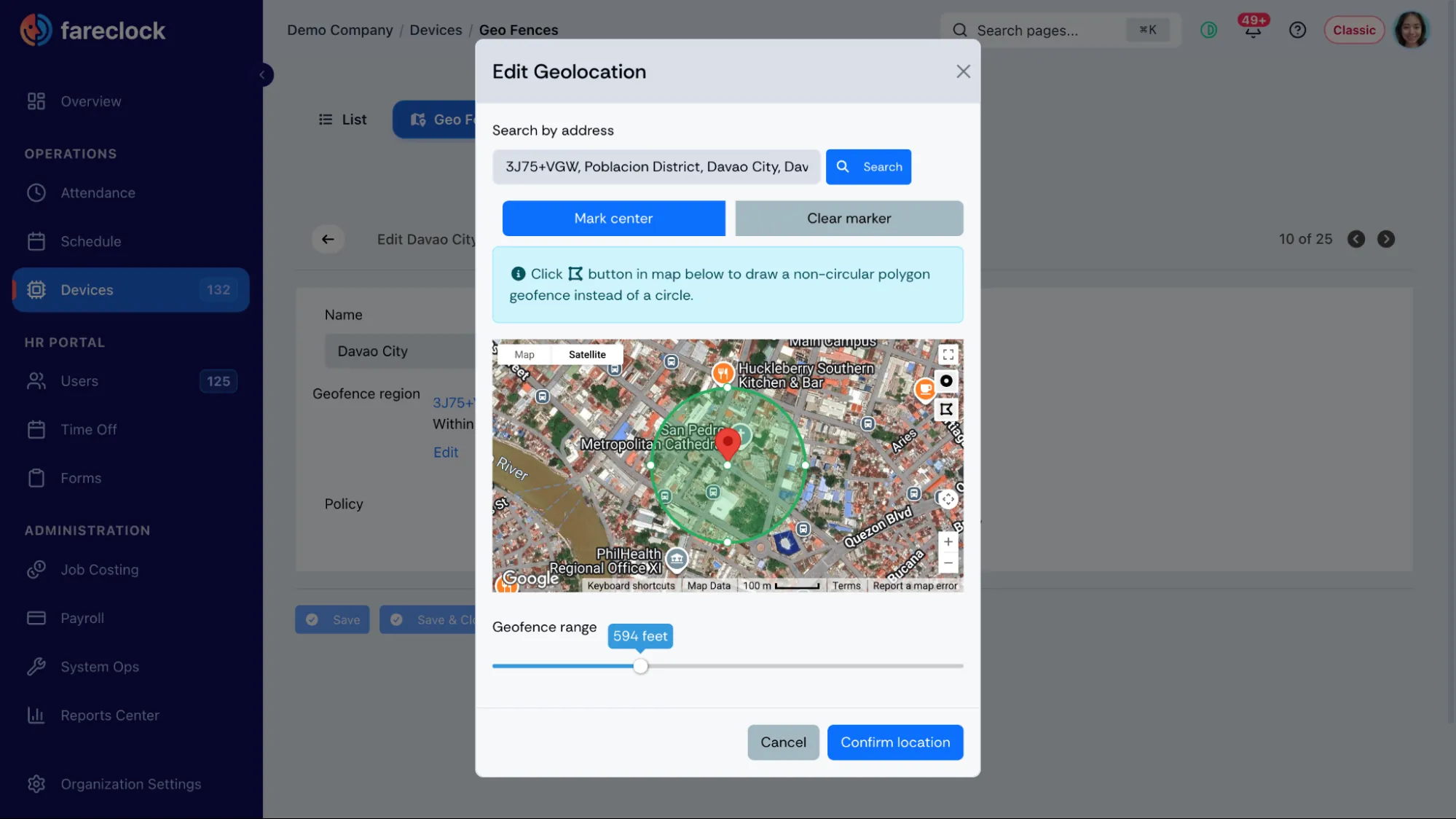
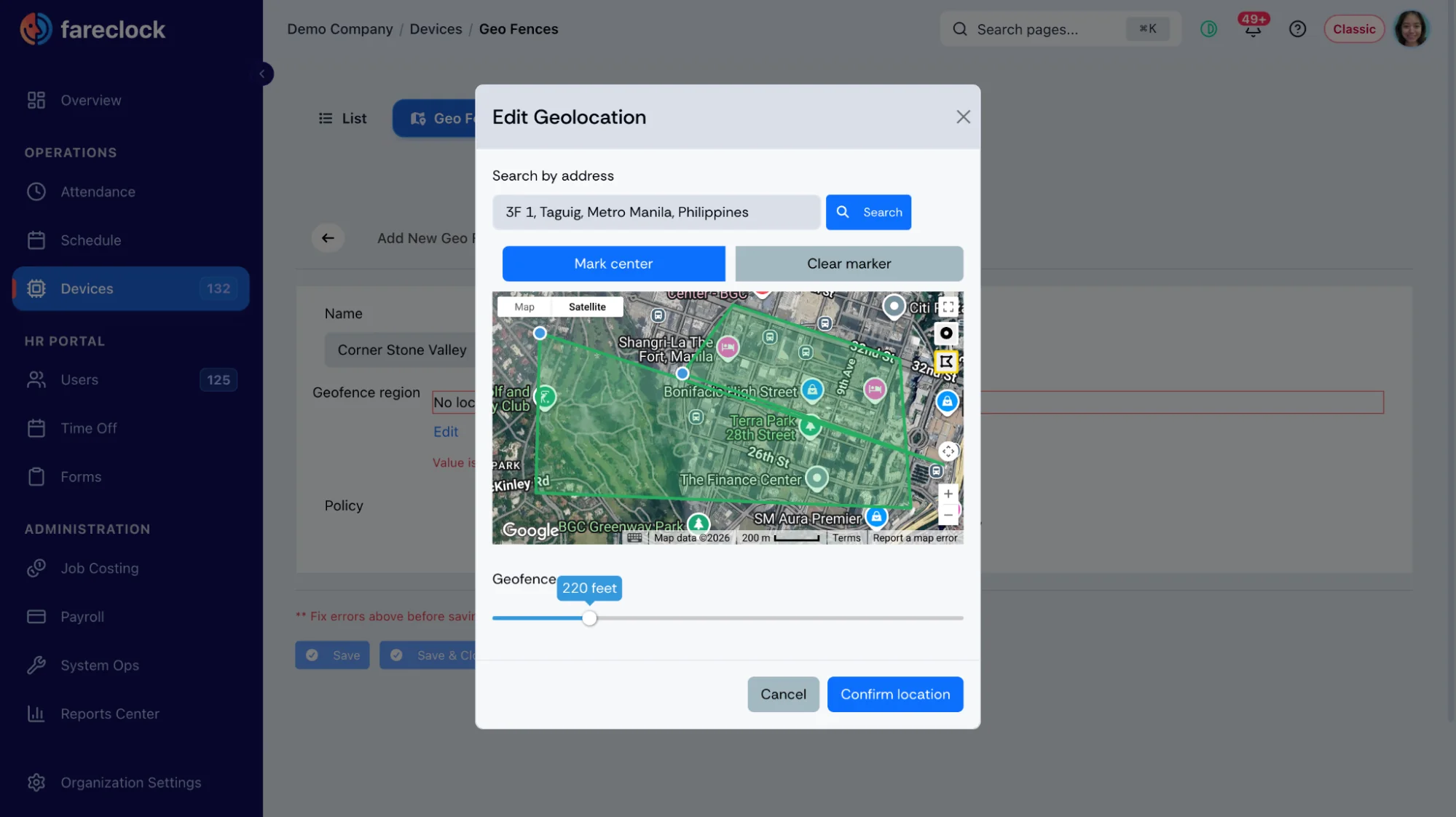
- Location tracking controls: Configure whether Fareclock records locations only at clock-in and clock-out or tracks workers throughout their shifts. Background location tracking is not performed when workers are off the clock.
- Facial recognition and identity verification: Combine geofenced clock-ins with Fareclock’s AI powered facial recognition and liveness detection. This helps verify that the assigned employee is present while GPS records the location associated with the punch.
- Geofence monitoring and troubleshooting: Use Fareclock’s Geo Mapping tools to review geofences and job locations alongside clock records. Administrators can investigate location discrepancies and check where punches were recorded.
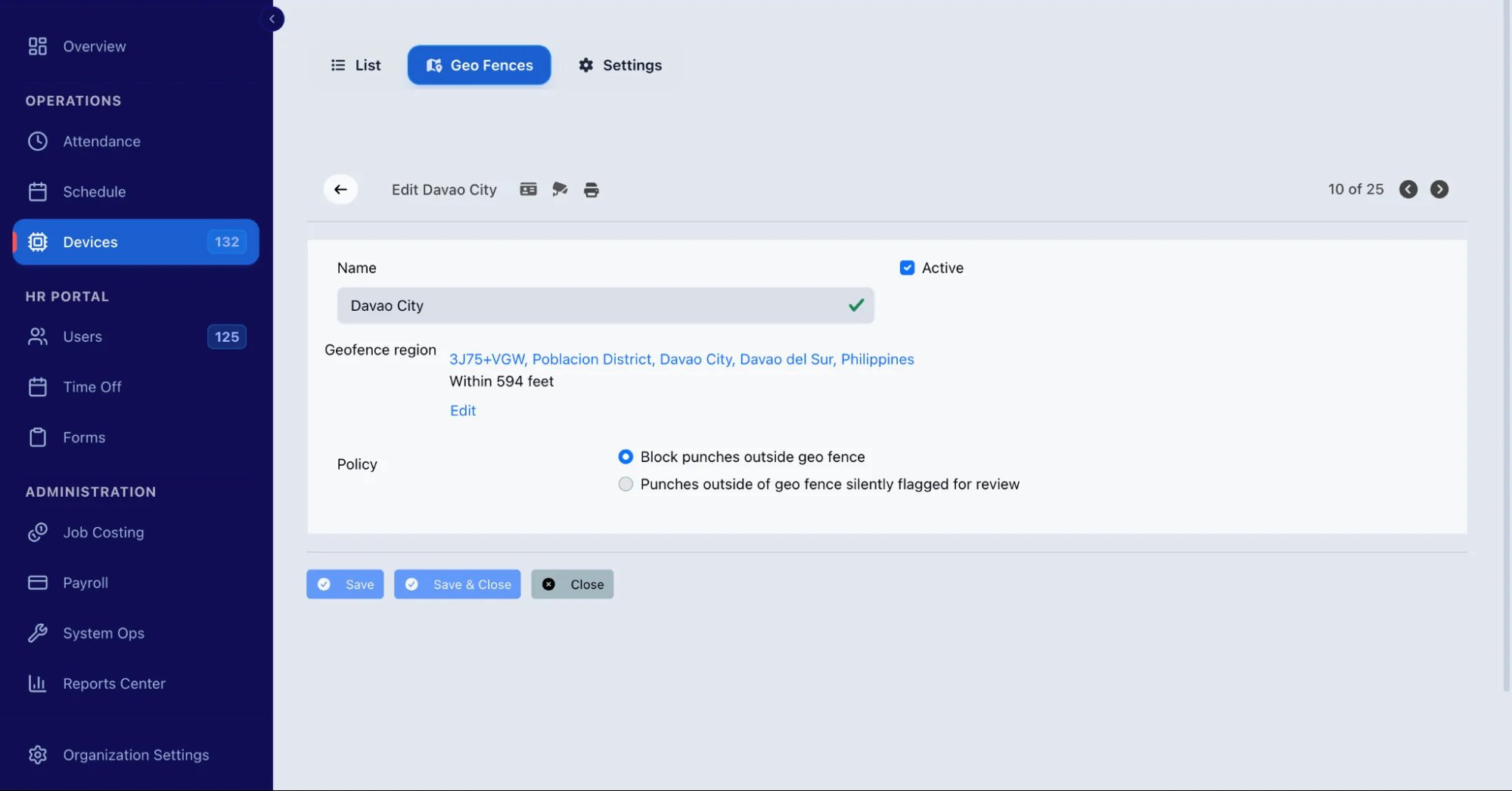
- Geo-location alerts and notifications: Fareclock can notify administrators when an employee’s device stops reporting location data or experiences geo-connection issues. These alerts help supervisors identify potential tracking interruptions and investigate location-related problems.
- Job costing and labor allocation: Connect recorded hours to specific jobs, phases, and cost codes. Workers can select their assignment when clocking in, or administrators can assign job details through shift schedules. This helps contractors see how labor hours are distributed across projects.
Fareclock also supports offline punches, allowing workers to record their time when mobile connectivity is unavailable. The records sync when the device reconnects, so crews can continue tracking hours at remote sites or in areas with poor reception.
Looking to improve clock-in accuracy across multiple construction sites? Explore Fareclock’s construction time tracking software to see how geofencing, GPS tracking, and job costing can help you manage employee attendance and labor hours. You can also review Fareclock’s pricing and start a free trial.
FAQ
How do you set up a geofence for a construction site?
Add the jobsite location, draw a boundary around the work area, and configure the clock-in and clock-out rules. Then assign workers or shifts to the site and test the boundary before rolling it out to the entire crew.
How large should a construction jobsite geofence be?
It should cover the actual work area while allowing some room for GPS variation. There’s no standard radius for every site, so test the boundary at entrances, corners, and other areas where workers may clock in.
Can a construction geofence follow an irregular site boundary?
Yes. Geofencing tools that support polygon-shaped boundaries let administrators mark individual points around an irregular work area. Fareclock supports both circular and polygon-shaped geofences.
Can employees clock in from outside a construction geofence?
That depends on the system’s settings. Administrators can configure rules to block out-of-area punches or allow them while flagging the records for review. Make sure your policy also covers legitimate exceptions, such as workers starting at a yard or collecting supplies.
How accurate is GPS clock-in on a construction site?
GPS accuracy varies depending on the device, signal strength, and surrounding structures. Large buildings, underground areas, and covered parking can affect location readings. Test the system with different phones and allow a reasonable margin for error.
What happens if GPS can’t verify a worker’s location?
The system’s response depends on its settings. It may allow the punch with a warning, flag it for review, or block it. A clear exception process should let workers report failed checks and supervisors review the issue before correcting a timecard.
Can one geofence cover multiple construction sites?
It’s generally better to create a separate geofence for each jobsite so location records and labor hours remain associated with the correct project. Some systems, including Fareclock, allow multiple geofences to be assigned to a worker.
How often should construction geofence boundaries be updated?
Review boundaries whenever site access points, work areas, or project layouts change. It’s also useful to check them regularly when reviewing flagged punches or location-related complaints.
Does geofencing prevent buddy punching?
Not by itself. Geofencing checks whether a device is within the permitted area, but it doesn’t establish who is using it. Combining location controls with identity verification, such as Fareclock’s facial recognition, provides an additional check against buddy punching.
Can geofencing work when mobile reception is unavailable?
Some time tracking systems support offline punches, storing records on the device until connectivity returns. However, offline time recording doesn’t necessarily mean GPS verification will work normally without a connection. Check how your software handles location data and synchronization before relying on it at remote jobsites.